1: Check
1.1 Read the last conversation summary.
1.2 Save it under parameter name "send_message"The task prompt
Numbered steps the AI follows, ready to paste into the Task prompt field.
50 prompts for UChat AI tasks
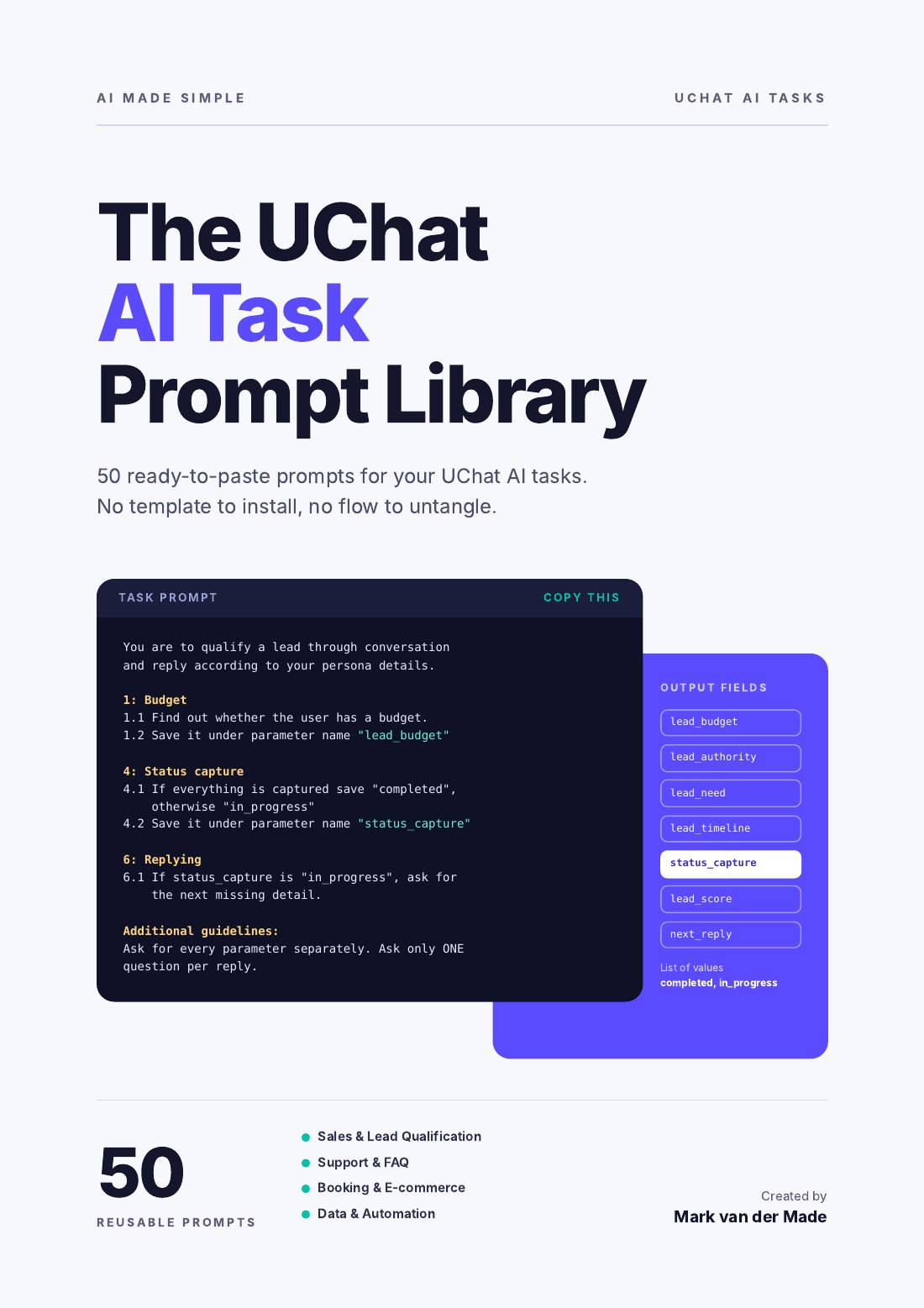
50 ready-to-paste prompts for your UChat AI tasks, each one with the output fields, the test sample and the flow already worked out. No template to install, no flow to untangle.
You are to qualify a lead through conversation and reply according to your persona details.

1: Budget
1.1 Find out whether the user has a budget.
1.2 Save it under parameter name "lead_budget"

4: Status capture
4.1 If everything is captured save "completed", otherwise "in_progress"
4.2 Save it under parameter name "status_capture"

6: Replying
6.1 If status_capture is "in_progress", ask for the next missing detail.

Additional guidelines:
Ask for every parameter separately. Ask only ONE question per reply.What you get in every entry
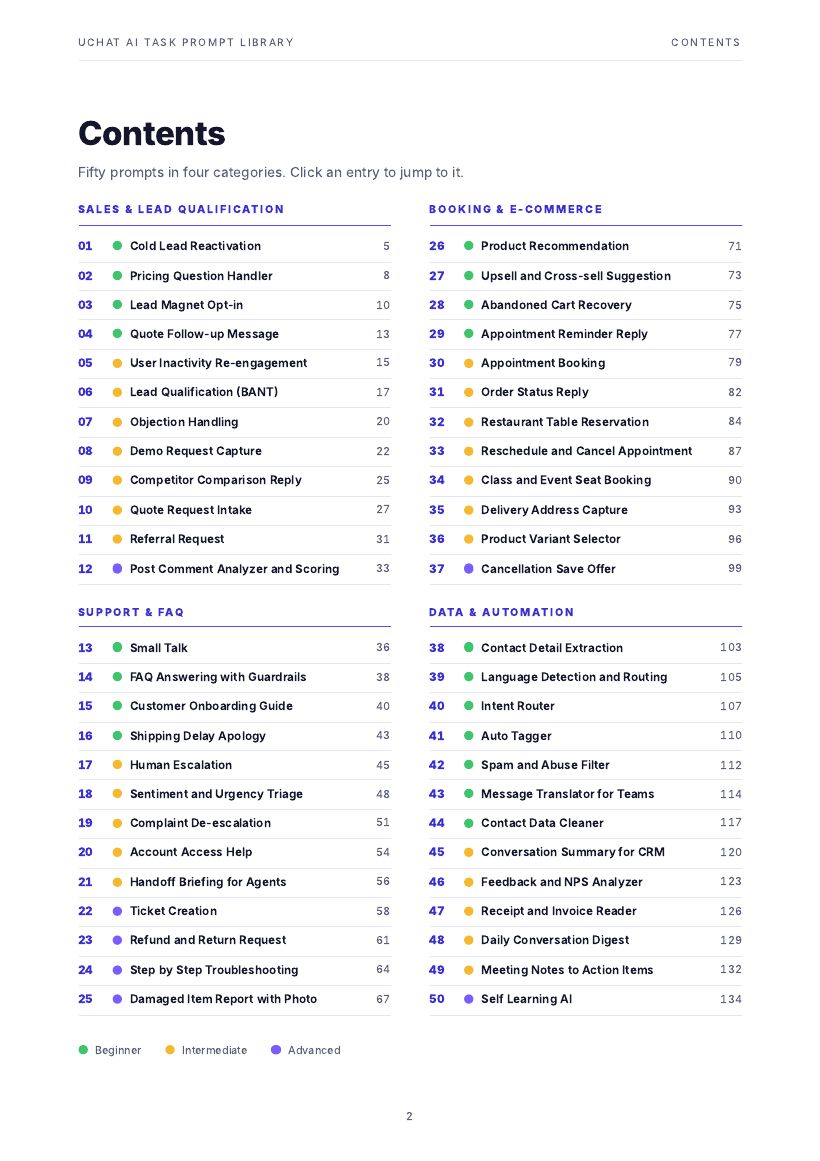
An AI task is more than its prompt. The output names have to match, the variables have to be right and the flow has to catch the answer. Every entry in the library gives you all of it, in the order you click through UChat.
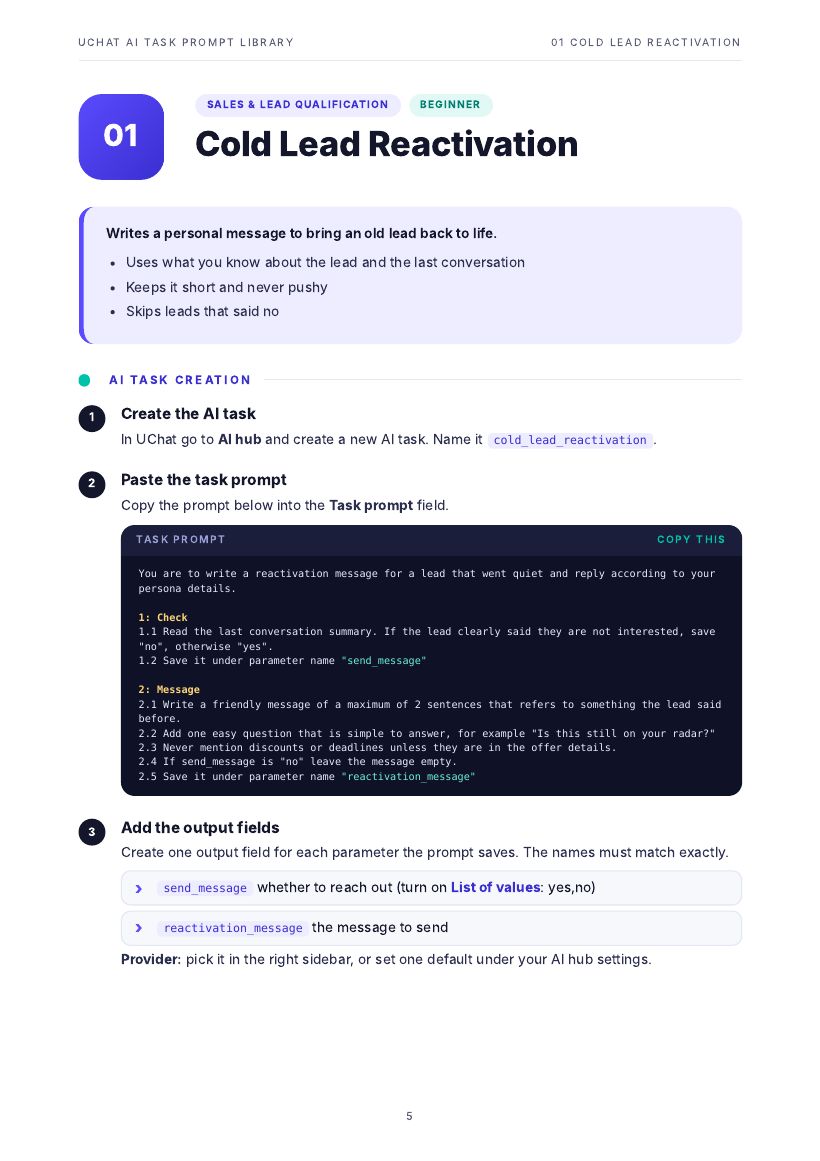
1: Check
1.1 Read the last conversation summary.
1.2 Save it under parameter name "send_message"Numbered steps the AI follows, ready to paste into the Task prompt field.
Every parameter the prompt saves, with List of values switched on where it matters.
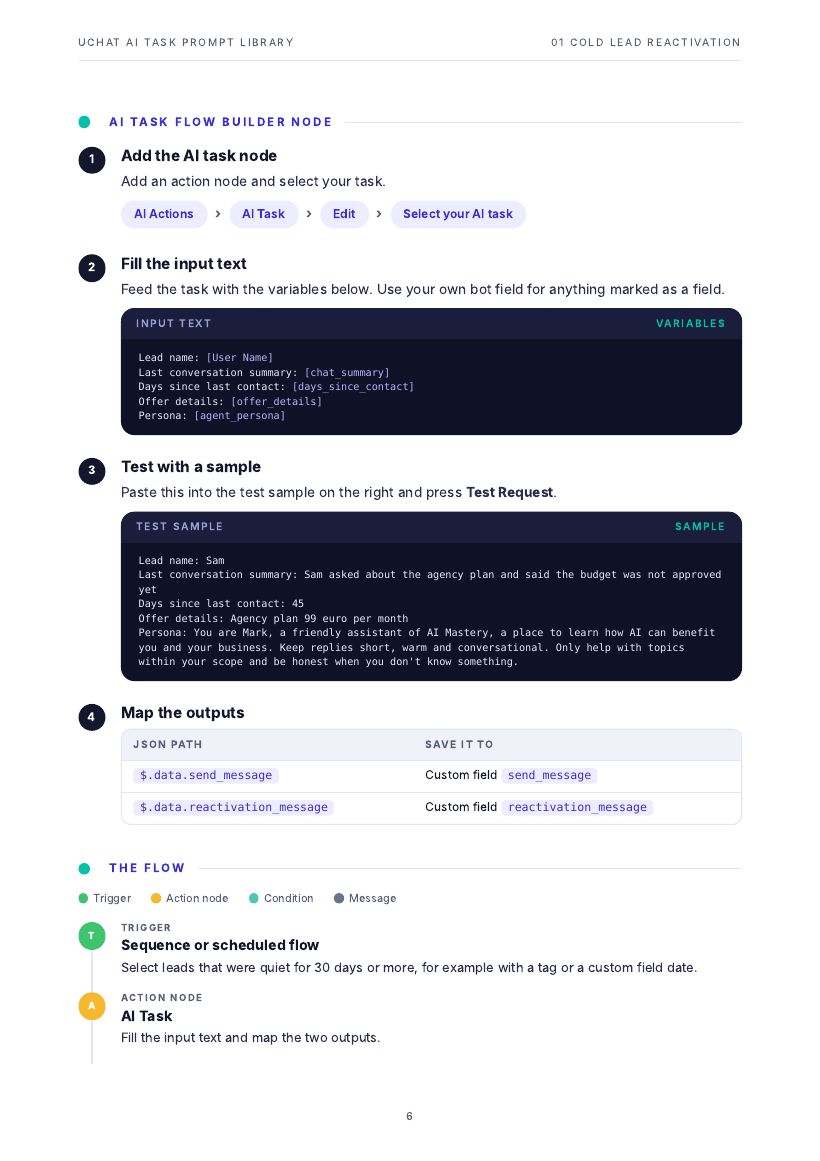
Last user input: [Last Text Input]
Persona: [agent_persona]Which UChat variables and bot fields to feed in, so the task knows the conversation.
Paste it into the test panel, press Test Request and see the task work before it goes live.
$.data.next_reply → next_replyThe JSON path for every field and the custom field to save it to.
For 20 of the 50 prompts: the trigger, conditions and messages around the AI task.
Inside the PDF
Click an entry in the contents to jump to it, copy the dark block, paste it into UChat. Square brackets mark the variables you insert from your own list, and every capture loop uses the same completed or in_progress pattern, so once you have built one, you can build them all.
19 Beginner 24 Intermediate 7 Advanced
All 50 prompts
Every entry is marked Beginner, Intermediate or Advanced. The ones marked also show the full flow around the task.
Capture, qualify and follow up leads, from the first comment to the signed quote.
Answer, triage and resolve customer questions, and hand over to a person at the right moment.
Take bookings, orders and changes in chat, without a person in the loop.
Turn messy text and images into clean data and decisions your flows can act on.
Free sample
These three come straight from the library. Copy one into a new AI task, add the output fields and press Test Request. If you like how it works, the other 47 are waiting.
Gives your AI agent a natural, friendly voice for greetings and casual chat.
1In UChat go to AI hub and create a new AI task. Name it small_talk.
2Paste the task prompt into the Task prompt field.
3Add the output fields. The names must match exactly:
next_reply the reply that is sent to the user4Feed the task this input text:
Conversation so far: [AI Agent Messages :: $]
Last user input: [Last Text Input]
Persona: [agent_persona]
Today's date: [NOW]You are to analyze the user reply and reply according to your persona details.
1: Introductions and welcome
1.1 If the user greets you or introduces themselves, welcome them warmly and introduce yourself according to your persona.
1.2 Save the reply under parameter name "next_reply"
2: Small talk
2.1 If the user makes small talk, reply in the same casual manner.
2.2 Save the reply under parameter name "next_reply"Answers price questions clearly and moves the chat toward the right plan.
1In UChat go to AI hub and create a new AI task. Name it pricing_handler.
2Paste the task prompt into the Task prompt field.
3Add the output fields. The names must match exactly:
next_reply reply sent to the userrecommended_plan best fitting plan or unknowncustom_price_needed user needs a custom offer (List of values: yes,no)4Feed the task this input text:
Conversation so far: [AI Agent Messages :: $]
Last user input: [Last Text Input]
Price list: [price_list]
Persona: [agent_persona]You are to answer a pricing question and reply according to your persona details.
1: Pricing answer
1.1 Use ONLY the price list provided. Never invent prices, discounts or terms.
1.2 Answer the question directly in a maximum of 3 sentences.
1.3 If the user asks for something that is not in the price list, say a team member will give a custom price.
1.4 Save the reply under parameter name "next_reply"
2: Plan fit
2.1 If you can tell which plan fits best, save its name under parameter name "recommended_plan"
2.2 If you cannot tell yet, save "unknown" and end your reply with ONE question that helps you decide, for example the team size.
3: Custom price
3.1 If the user needs a custom price or a discount, save "yes", otherwise "no"
3.2 Save it under parameter name "custom_price_needed"Reads a message and tells your flow where to send it.
1In UChat go to AI hub and create a new AI task. Name it intent_router.
2Paste the task prompt into the Task prompt field.
3Add the output fields. The names must match exactly:
intent the chosen intent (List of values: sales,support,booking,billing,feedback,other)intent_confidence how sure the AI is (List of values: high,medium,low)intent_reason short reason4Feed the task this input text:
Conversation so far: [AI Agent Messages :: $]
Last user input: [Last Text Input]You are to classify the last message of the user into one intent.
1: Intent
1.1 Choose exactly ONE intent from the list provided: sales, support, booking, billing, feedback or other.
1.2 Use "other" when the message fits none of them.
1.3 Save it under parameter name "intent"
2: Confidence
2.1 Rate how sure you are: high, medium or low.
2.2 Save it under parameter name "intent_confidence"
3: Reason
3.1 Explain in a maximum of 8 words why you chose this intent.
3.2 Save it under parameter name "intent_reason"
Additional guidelines:
Look at the whole conversation, not only the last message, when the last message is very short.In the full library, every entry also has a test sample, the output mapping and the next step after the task.
Two ways to use them
Add the AI task as an action node anywhere in a flow, then map its outputs to custom fields.
Trigger an AI function and its workflow. Put the AI task in that workflow and send the output to an AI output node, so the agent can reply with it.
Use the same structure in every client bot: the same field names, the same capture loops, the same tests.
Add qualification, booking, triage or a support desk to the bot you already have, one task at a time.
Start with the 19 Beginner prompts and work up to the Advanced ones, like the agent that reviews its own conversations.

Who made this
I build chatbots and AI agents, and I teach others to build them in Chatbot Marketing Accelerator and AI Made Simple. Every prompt in this library follows the structure I use for AI tasks in UChat: numbered steps, one named parameter per output, and a status field for anything that collects more than one detail. It keeps tasks predictable, easy to test and easy to change later.
One-time payment
$9.97USD
Secure checkout by Stripe. No subscription.
Questions
A UChat account where you can create AI tasks in the AI hub, with an AI provider connected. Every entry tells you exactly where to click.
No. Each entry is text you copy into an AI task, plus the fields and flow steps around it. Nothing is installed in your workspace, so nothing breaks the flows you already have.
Yes. 19 prompts are marked Beginner, and the Before you start section explains both ways to use an AI task. Small Talk, one of the free prompts above, is a good first one.
The one you choose. Pick it in the right sidebar of the AI task, or set one default under your AI hub settings. Test every task with its sample before it goes live.
Yes. Use and adapt them in bots you build for yourself or for your clients. Please do not resell or share the PDF itself. See the terms.
Right after payment Stripe takes you to your download page. Save the PDF there. If you lose it, email info@chatbotmarketingaccelerator.com with your receipt and I will send it again.
Email info@chatbotmarketingaccelerator.com within 30 days and you get a full refund. See the refund policy.